Translation notice
This page was translated with machine translation and may contain inaccuracies. If you can help improve it, please open an issue or submit a pull request.
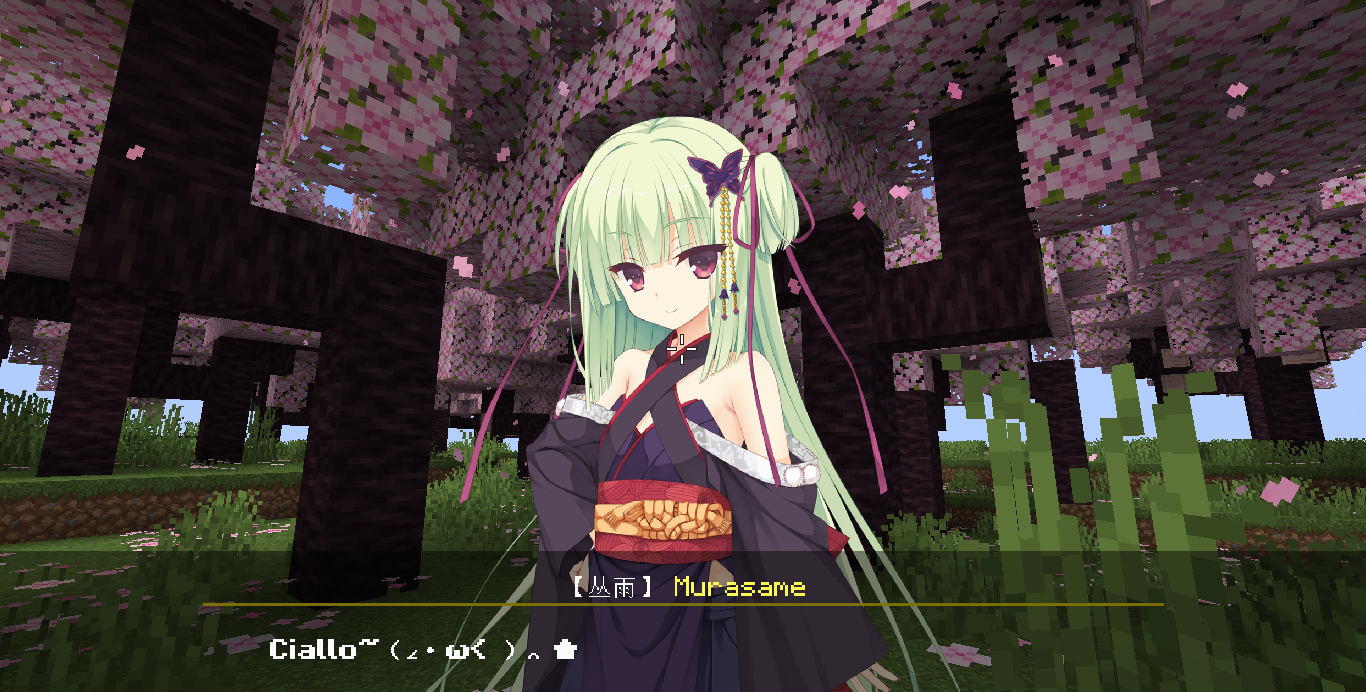


In case you don't know I can play Qianlianwanhua in MC
Don't say anything when you come in, just shout together:
Ciallo~ (∠・ω< )⌒★
Welcome to our MC 旮旯给木(Galgame) project. This project aims to create a dialog similar to Galgame in a simple way.
- How it works: vanilla game, data pack
- Supported version: >=1.21.5
- Supports concurrent use by multiple people
Ⅰ Environment preparation
Place the data pack under the datapacks folder of the archive. In order to facilitate subsequent editing and adjustment, we need to decompress the compressed data pack and then use Visual Studio CodeOpen the data pack folder.
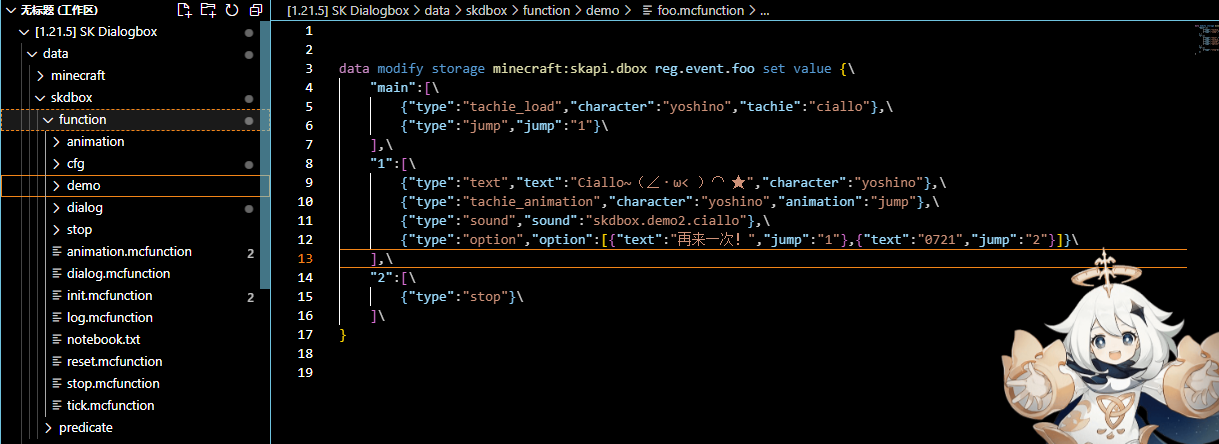
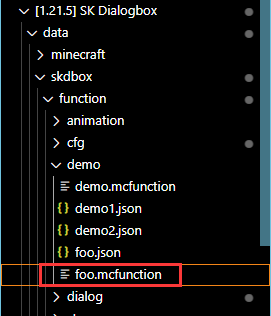
Expand to foo.mcfunction in the demo folder. It is recommended that subsequent demonstrations and operations be performed in this file.
Assume that there is the following command in foo.mcfunction now. It doesn’t matter if you can’t understand it now. It’s just a demonstration.
data modify storage minecraft:skapi.dbox reg.event.foo set value {\
    "main":[\
        {"type":"tachie_load","character":"yoshino","tachie":"ciallo"},\
        {"type":"jump","jump":"1"}\
    ],\
    "1":[\
        {"type":"text","text":"Ciallo~(∠・ω< )⌒ ★","character":"yoshino"},\
        {"type":"tachie_animation","character":"yoshino","animation":"jump"},\
        {"type":"sound","sound":"skdbox.demo2.ciallo"},\
        {"type":"option","option":[{"text":"再来一次!","jump":"1"},{"text":"0721","jump":"2"}]}\
    ],\
    "2":[\
        {"type":"stop"}\
    ]\
}
It is not difficult to notice that each line of this command ends with \, which is not conducive to our editing. One solution is to write the content in the Json file first, then search and replace, and add \ to the end of the line in batches.
Before starting, you can try some sample programs built into the data pack. Please run the following command in the chat bar.
/function skdbox:dialog {id:"demo1"}/function skdbox:dialog {id:"demo2"}Ⅱ Event List
Displaying text, displaying vertical images, playing voice and other operations are collectively called events, and events are stored in the event list.
basic
Define event list
data modify storage minecraft:skapi.dbox reg.event.<事件列表ID> set value <事件列表>Parameter description <Event List ID> The ID of the event list, this is unique <Event List> A composite tag containing all events, the format is as follows

(root tag):
main:Entry sublist(sublist name):a sublist
Play event list
function skdbox:dialogExecutor Specifies who to play the event list to. Only a single player can be specified. parameter
(root tag):
id:The id of the event list
Termination event list
The event list can be automatically terminated when the playback is completed. Of course, you can also terminate it directly using this function.
function skdbox:stoptext event
Text events, as the name suggests, are to display text on the player screen. After a text is displayed, it will wait for the player to press the space bar, and then display the next text.
(Text event root tag):type: text:This item indicates that the event is a text eventtext:The text to be displayed, plain text, does not support text components, you can use escapecharacter:The speaking character is used to control the character name and description above the displayed dialog. If it does not exist, the data used when the text event was last called is used. If this is NULL, the role name and description are not displayed. For more information about role definition, see Defining Rolesdisplay_name:Character name (this will overwrite character)description:Character description (this will overwrite character)

Now let's look at a demonstration, put the following command into foo.mcfunction, and then reload the data pack Regarding "character":"roka", for the convenience of demonstration, data pack has defined some roles. For details, see Define Roles
data modify storage minecraft:skapi.dbox reg.event.foo set value {\
    "main":[\
        {"type":"text","character":"NULL","text":"「嘛......要说也的确是好久没来了」"},\
        {"type":"text","character":"roka","text":"「这就直接去志那都庄了?」"},\
        {"type":"text","character":"NULL","text":"「是这个打算」"},\
        {"type":"text","character":"roka","text":"「那我也一起走比较好吧,因为好久不见,再聊会吧」"},\
    ]\
}
Just type it in the chat bar and it will run.
/function skdbox:dialog {id:"foo"}In the following demonstration, in order to facilitate modification and editing, the event list composite tag will be displayed directly in the form of json, like this
{
    "main":[
        {"type":"text","character":"NULL","text":"「嘛......要说也的确是好久没来了」"},
        {"type":"text","character":"roka","text":"「这就直接去志那都庄了?」"},
        {"type":"text","character":"NULL","text":"「是这个打算」"},
        {"type":"text","character":"roka","text":"「那我也一起走比较好吧,因为好久不见,再聊会吧」"},
    ]
}
Delayed event
Thanks to timing control, we can complete many useful operations
If there are only text events in the event list, its timing is like this
Text typing animation takes time depending on the length of the text
{
    "main":[
        {"type":"text","character":"NULL","text":"第一句话"},
        {"type":"text","character":"roka","text":"第二句话"},
    ]
}gantt
axisFormat %S
dateFormat ss
section tick
加载文本事件 :active, after des1, 1s
打字动画 :4s
等待玩家按下空格 :3s
加载文本事件 :active, 1s
打字动画 :4s
等待玩家按下空格 :3sIf other events are added after the text event, these events will be executed at the same time as the text event.
{
    "main":[
        {"type":"text","character":"NULL","text":"第一句话"},
        {"type":"tachie_load","character":"roka","tachie":"1"},
        {"type":"text","character":"roka","text":"第二句话"},
        {"type":"tachie_modify","character":"roka","tachie":"2"},
        {"type":"tachie_animation","animation":"jump"}
    ]
}gantt
axisFormat %S
dateFormat ss
section tick
加载text :active, a, after 0, 1s
打字动画 :b, after a ,4s
加载tachie_load :active, after 0, 1s
等待玩家按下空格 :c, after b,3s
加载文本事件 :active, d, after c,1s
打字动画 :e, after d,6s
加载tachie_modify :active, f, after c,1s
加载tachie_animation :active, g, after c,1s
播放立绘动画 :after g,3s
等待玩家按下空格 :after e,3sIt is not difficult to find that the tachie_modify event and the tachie_animation event are executed at the same time, but we hope to delay the execution of the tachie_animation event for a period of time after executing the tachie_modify event.
In this case, you need to use delayed events, the format is as follows
(delayed event root tag):type: delay:This item indicates that the event is a delayed event
time:Delay time (tick)
{
    "main":[
        {"type":"text","character":"NULL","text":"第一句话"},
        {"type":"tachie_load","character":"roka","tachie":"1"},
        {"type":"text","character":"roka","text":"第二句话"},
        {"type":"tachie_modify","character":"roka","tachie":"2"},
        {"type":"delay","time":2},
        {"type":"tachie_animation","animation":"jump"}
    ]
}gantt
axisFormat %S
dateFormat ss
section tick
加载text :active, a, after 0, 1s
打字动画 :b, after a ,4s
加载tachie_load :active, after 0, 1s
等待玩家按下空格 :c, after b,3s
加载文本事件 :active, d, after c,1s
打字动画 :e, after d,6s
加载tachie_modify :active, f, after c,1s
delay :active, h, after c,2s
加载tachie_animation :active, g, after h,1s
播放立绘动画 :after g,3s
等待玩家按下空格 :after e,3sstanding painting incident
Only text is still too monotonous, vertical drawing is essential
The vertical drawing event uses the character ID as the index, so the vertical drawing of the same character cannot be loaded multiple times at the same time.
For details on role definition, see Define Role
Load vertical painting tachie_load
(event root tag):type: tachie_load:This item indicates that the event type is: loading vertical paintingcharacter:Character IDtachie:Vertical painting IDposition:The xcoordinate of the vertical painting, the default is CENTER, the optional values are LEFT, M_LEFT, CENTER, M_RIGHT, RIGHT. If you want to use a custom value, please see the global settings of vertical painting for details.color:Color overlay, the default is default(#FFFFFF), the optional values are midnight, noon, if you want to use a custom value, please see the global settings for details.animation:Animation ID, vertical loading animation, default is fade_in_left, see defining animation for details
Modify vertical painting tachie_modify
(event root tag):type: tachie_modify:This item indicates that the event type is: modify vertical paintingcharacter:Character IDtachie:Vertical painting ID
Remove vertical painting tachie_remove
(event root tag):type: tachie_animation:This item indicates that the event type is: loading vertical graphicscharacter:Character IDanimation:Animation ID, see Defining Animation for details
Regarding the parameter position, you can refer to this picture 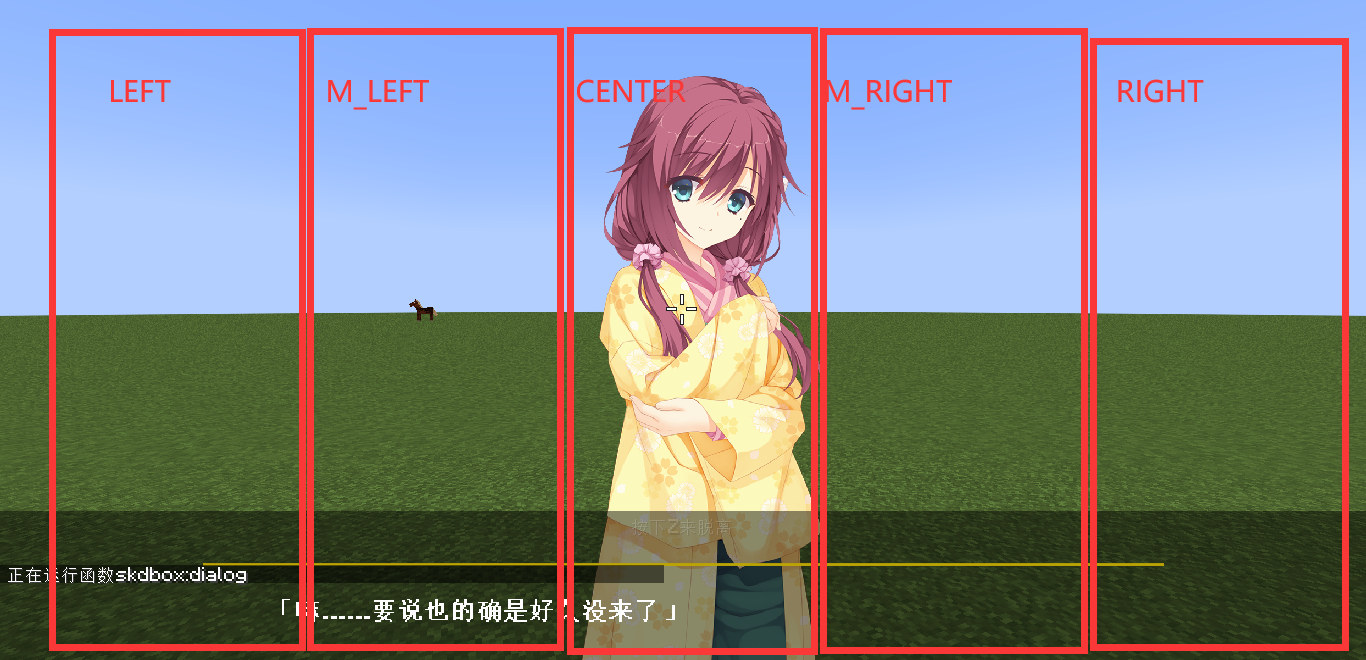
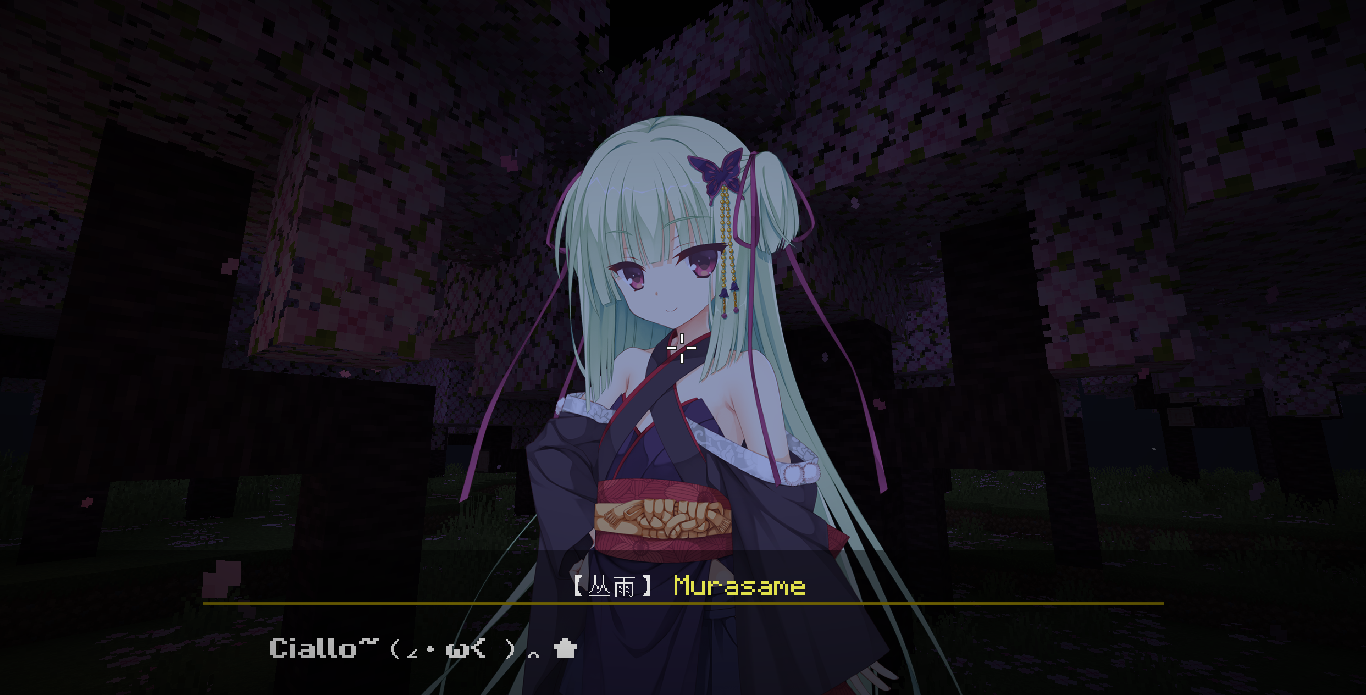
Regarding the parameter color, it is used to make the color tone of the vertical painting more suitable for the environment, as shown in the figure 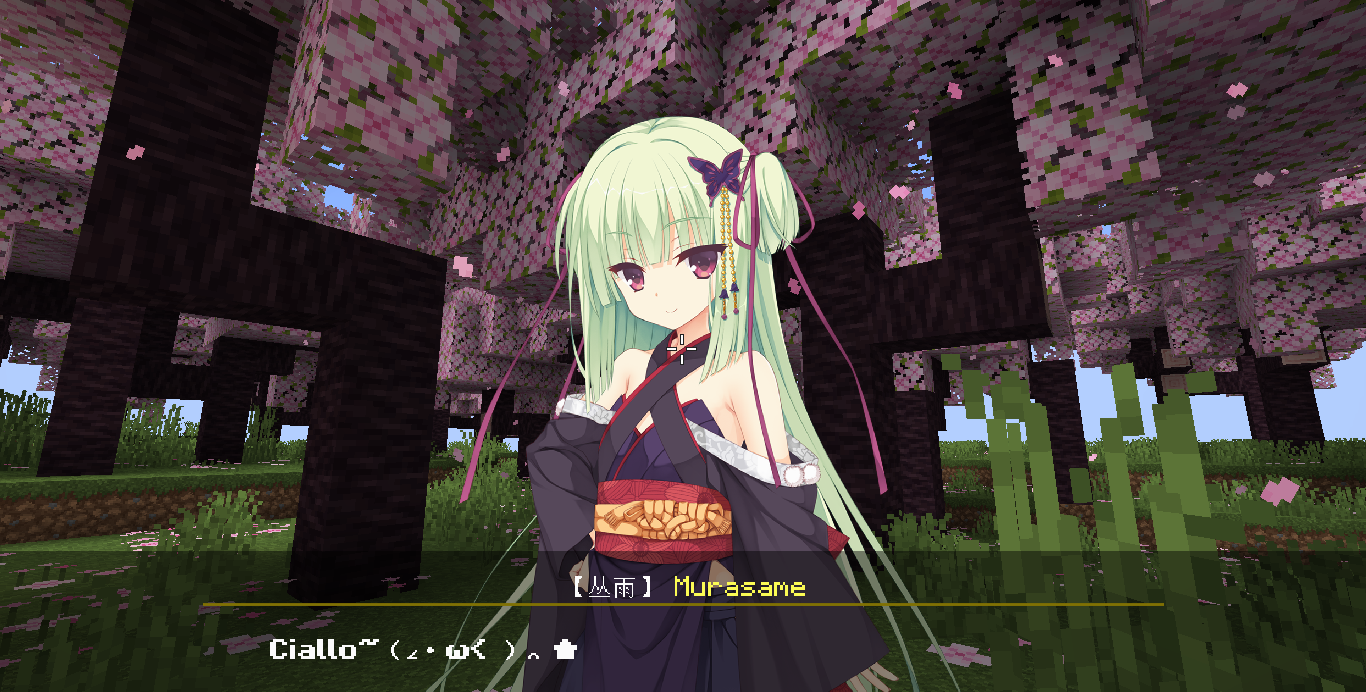
process control event
Termination event
(event root tag):type: stop:This item indicates that the event is a termination event
As the name suggests, the termination event can cause the event list to end early
{
    "main":[
        {"type":"text","character":"NULL","text":"这是一句话"},
        {"type":"stop"},
        {"type":"text","character":"roka","text":"事件列表提前终止了,这句话将不会显示"}
    ]
}
jump event
(event root tag):type: jump:This item indicates that the event is a jump eventjump:Jump to, sub-event list ID
{
    "main":[
        {"type":"text","character":"NULL","text":"这是一句话"},
        {"type":"jump","jump":"jmp01"}
    ],
    "jmp01":[
        {"type":"text","character":"roka","text":"使用jump事件可以跳转到这里"}
    ]
}
Check conditions
Check a condition. If the condition passes, jump to the specified sub-event list. If the condition does not pass, continue executing the current sub-event list.
Use @a[tag=skdbox.s] to refer to player
(event root tag):type: check_condition:This item indicates that the event is a check condition eventcondition:A conditional subcommand of execute commandjump:Jump to, sub-event list ID
check score
Check the score. If the score is within the specified interval, jump to the specified sub-event list. If the score is not within any specified interval, continue to execute the current sub-event list.
Use @a[tag=skdbox.s] to refer to player
(event root tag):type: check_score:This item indicates that the event is a check score eventscoreboard:Scoreboard nameobject:Score holderscore:Check item list(list element)interval:Interval, two values corresponding to the left endpoint and right endpoint valuesjump:Jump to, sub-event list ID
Execute command
Execute a command. The default executor of the command is Marker. Use @a[tag=skdbox.s] to refer to the current player.
(event root tag):type: cmd:This item indicates that the event is an execution command eventcmd:The command to be executed
option event
(event root tag):type: option:This item indicates that the event is an option eventcmd:Option list(list element)text:Text on this optionjump:Jump to, sub-event list ID
Options are one of the essential elements of Galgame. Different options often determine different plot directions.
The player presses W (forward key) and S (backward key) to switch options, and press spacebar to confirm the option.
There is no limit to the number of options, but if many options are displayed at the same time, the options will overlap. In this case, the option spacing needs to be adjusted. For details, see Global Settings Options
Of course, regarding options, there are naturally various underworld scenes.
It turns out to be two Japanese sentences full of childishness. Those who didn’t know it thought they were choosing between inside and outside
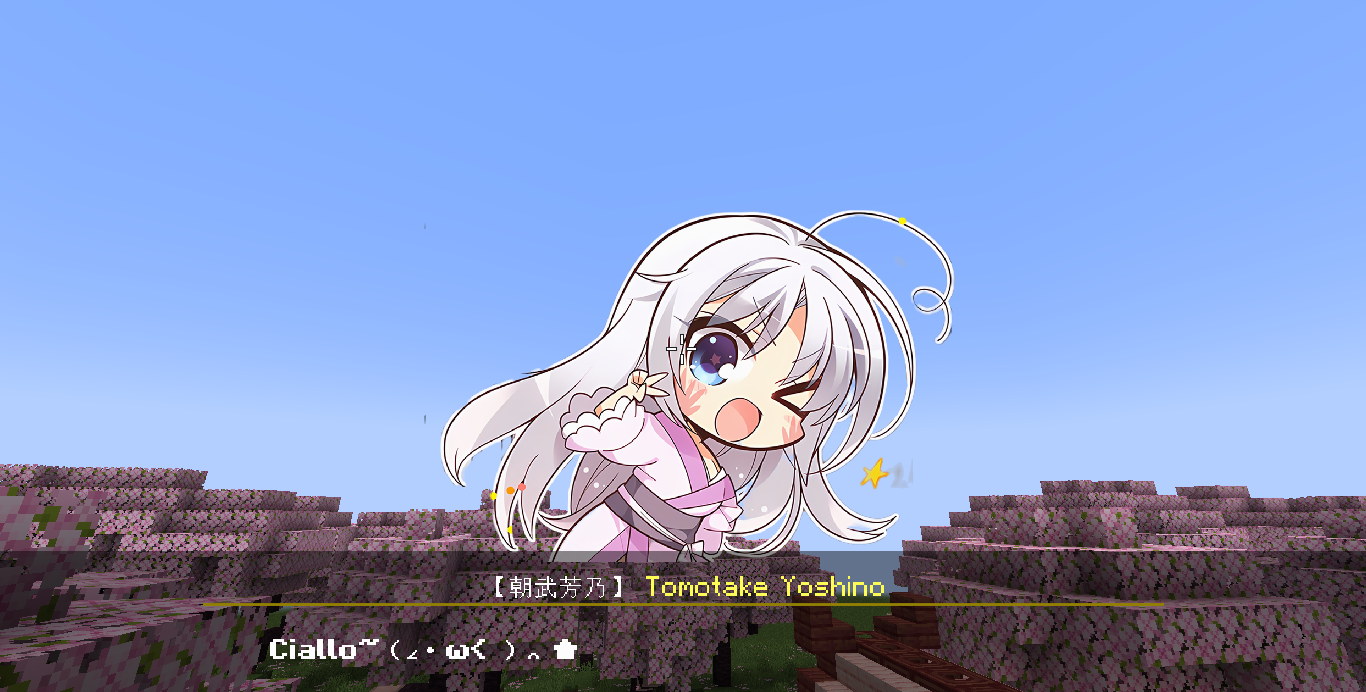
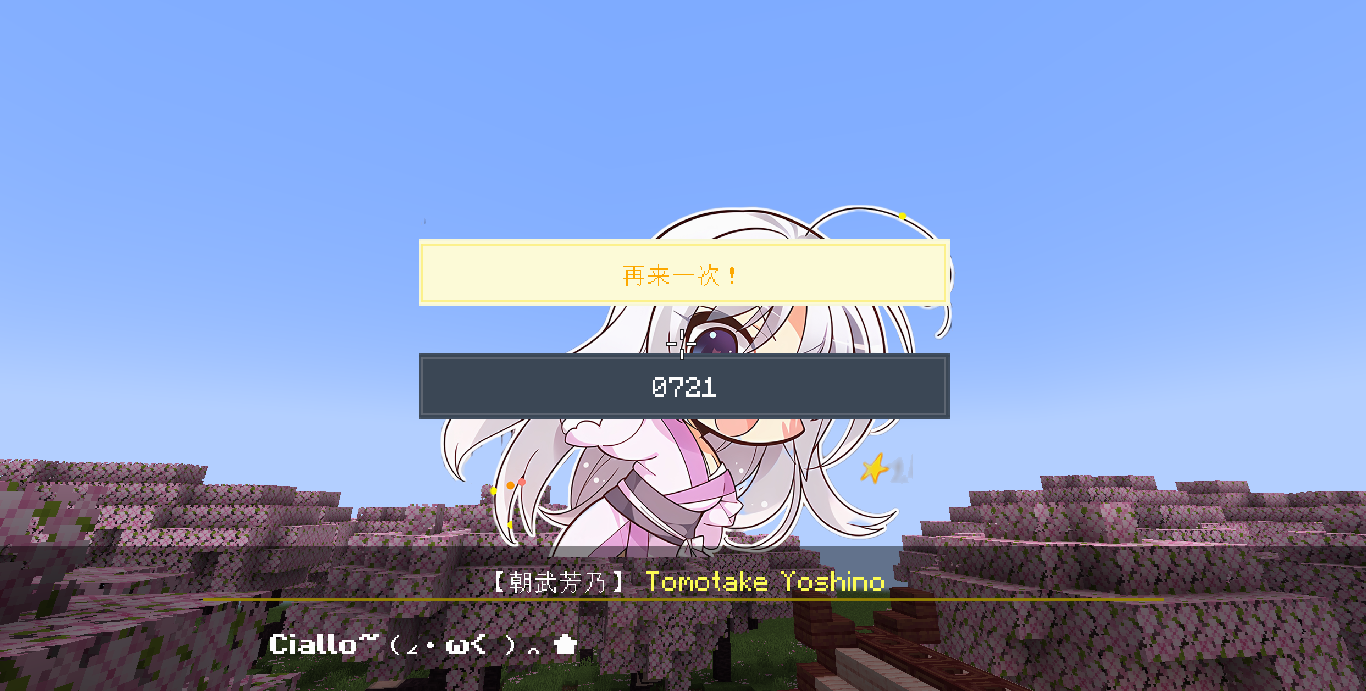
Let's look at an example below. When playing Ciallo, the player can choose to play it again or end it.
flowchart TD

A(开始) --> B[加载立绘]
B --> C[Ciallo~(∠・ω< )⌒ ★]
C --> D[立绘动画jump]
D --> E[播放声音]
E --> F{显示选项}
F --> |再来一次| B
F --> |0721| G(结束){
"main":[
{"type":"tachie_load","character":"yoshino","tachie":"ciallo"},
{"type":"jump","jump":"1"}
],
"1":[
{"type":"text","text":"Ciallo~(∠・ω< )⌒ ★","character":"yoshino"},
{"type":"tachie_animation","character":"yoshino","animation":"jump"},
{"type":"sound","sound":"skdbox.demo2.ciallo"},
{"type":"option","option":[
{"text":"再来一次!","jump":"1"},
{"text":"0721","jump":"2"}
]}
],
"2":[
{"type":"stop"}
]
}Ciallo~(∠・ω< )⌒ ★
sound event
play sound
Play a sound to the current player
(event root tag):type: sound:This item indicates that the event is a playback sound eventsound:The sound to be played
Voice events
If you want to add voice to every sentence, it is very troublesome to use the play sound event. In this case, you need to use the voice event.
You only need to use a voice event once to automatically play the corresponding voice for each conversation.
(event root tag):type: voice:This item indicates that the event is a voice eventpath:Sound file path prefixindex:Index value, enter -1 to stop voice playbackskip:Indicates which characters do not need to play voices. This item defaults to [NULL]
Let’s look at an example:
{
    "main":[
        {"type":"voice","path":"minecraft:skdbox.demo1.","index":1},
        {"type":"text","character":"roka","text":"「这就直接去志那都庄了?」"},
        {"type":"text","character":"NULL","text":"「是这个打算」"},
        {"type":"text","character":"roka","text":"「那我也一起走比较好吧,因为好久不见,再聊会吧」"},
        {"type":"text","character":"NULL","text":"「我当然可以,不过芦花姐,时间不紧吗?」"},
        {"type":"text","character":"roka","text":"「没事没事,那走吧」"},
        {"type":"text","character":"roka","text":"「......总觉得阿将啊,从刚才开始就好像在盯着我?」"},
        {"type":"text","character":"roka","text":"「被这么盯着,姐姐可是要害羞了呢。怎么怎么?莫非是迷上我了?」"},
        {"type":"text","character":"roka","text":"「还是说,脸上粘了什么东西吗?」"}
    ],
}
Execute the above event list, the voice will be played in this order It can be seen that the voice automatically skips the character named "NULL"
| Voice | Text |
|---|---|
| minecraft:skdbox.demo1.1 | "Go directly to Shinado Village?" |
| "That's the plan" | |
| minecraft:skdbox.demo1.2 | "Then it would be better if I go together, because we haven't seen each other for a long time, let's chat again" |
| "Of course I can, but Sister Luhua, aren't you pressed for time?" | |
| minecraft:skdbox.demo1.3 | "It's okay, let's go" |
| minecraft:skdbox.demo1.4 | "...I always feel like General, you are staring at me from just now?" |
| minecraft:skdbox.demo1.5 | "My sister is getting shy after being stared at like this. What's going on? Could it be that she has a crush on me?" |
| minecraft:skdbox.demo1.6 | "Or is there something stuck on your face?" |
Ⅲ Add new content
Define roles
Role information is defined in function/cfg/character.mcfunction, as shown in the figure
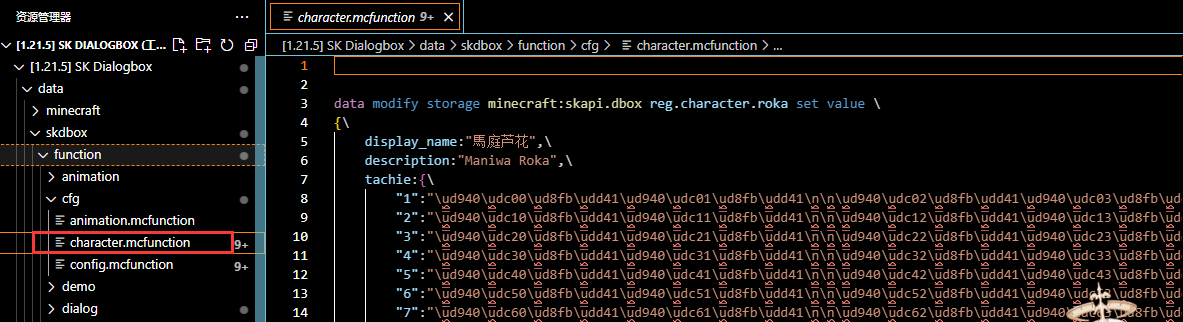
You will find that most of the files in this file are \uXXXX escape characters. I know you are in a hurry, but don’t worry. The use of these characters will be discussed in **Import vertical painting**This section explains
Define roles
data modify storage minecraft:skapi.dbox reg.character.<角色ID> set value <角色信息>Parameter description
<Character ID> Role ID, this is unique
<Role information> A composite tag containing all the information of the role, the format is as follows
(root tag):display_name:The name of the character will be displayed above the dialogdescription:The description of the role will be displayed above the dialog.tachie:Stand-up drawing of the characterVertical Drawing ID:A vertical drawing string
Let’s look at an example: Define the role Cong Yu
{
    display_name:"丛雨",
    description:"Murasame"
    tachie:{

    }
}
Import vertical painting
We have just defined the basic information of Cong Yu, and now we need to import the vertical painting.
First, we need to prepare some three-dimensional pictures with transparent backgrounds. Of course, these cannot be used directly. We need to further process them.
The specific processing method is
- Width is an integer multiple of 256 pixels
- Height is 2048 pixels
After adjusting the size, you need to select the entire image and fill it with a white color with an opacity of 1%, as shown in the picture. This can avoid empty pixels in the image, which will cause text misalignment. The game will discard fragments with a transparency less than 24 (transparency 0~255), so this layer of white will not be visible in the game. 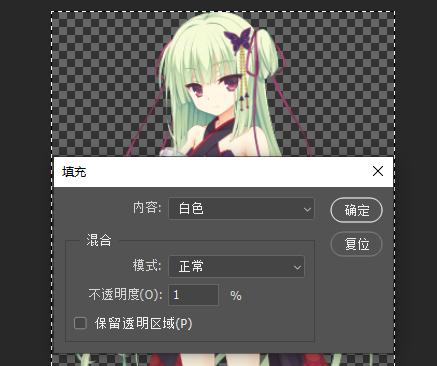
Place the processed vertical painting in the resource packassets/minecraft/textures/font/skdbox/murasame path. Of course, /skdbox/murasame can be changed to the location you like. The file name is named with numbers, starting from 1, as shown in the figure. 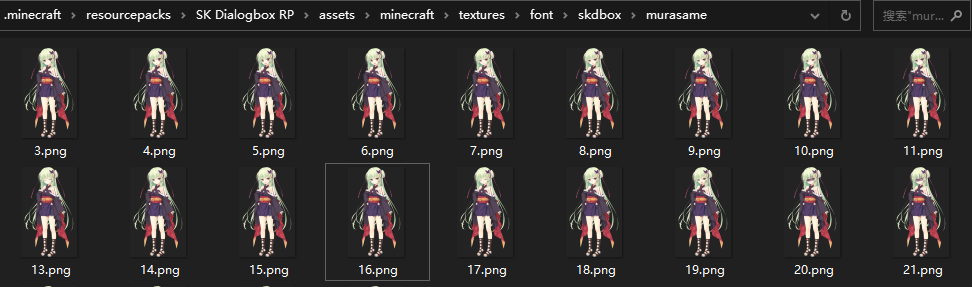
Open the encode.py program in the data pack folder. This program can assign a code point to each 256*256 area on the image. 
Then you need to fill in some information, just fill it in according to the actual situation.
- Fill in the starting code bit first with 0x60220. What actually needs to be filled in here will be discussed below.
- The number of imported images is filled in according to the actual situation. A total of 26 vertical paintings need to be imported here.
- The size of the processed vertical image is 1280*2048, which can be divided into 5*8 areas of 256*256, so fill in 5 for the number of divided columns and 8 for the number of divided rows.
The program will generate an output.txt file. The content of this file is divided into three parts. The first part is to declare the code bits corresponding to each 256*256 area on the image. These contents need to be added to resource packassets/font/default.json. Just now we put the vertical painting into assets/minecraft/textures/font/skdbox/murasame, so here, we need to replace font/skdbox/ in the file with font/skdbox/murasame/ This part of the content looks like this 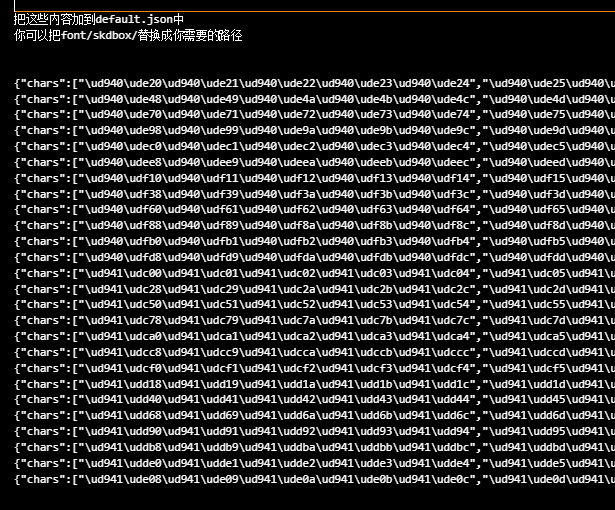
Then there is the second part. Each line represents a vertical painting. You can print these strings directly in the game to display the vertical painting. This part of the content looks like this 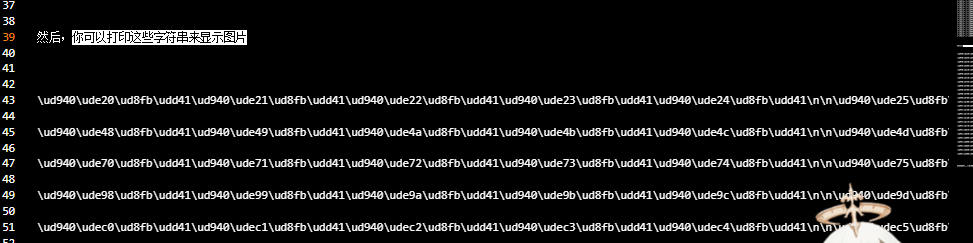
Now you just need to put these strings under the character's tachietag. The demonstration here only adds two lines. In fact, you should add the second part of the strings. The vertical painting ID can be any string. The numbers used are demonstrated here.
{
    display_name:"丛雨",
    description:"Murasame"
    tachie:{
      "1":"\ud940\ude20\ud8fb\udd41\ud940\ude21\ud8fb\udd41\ud940\ude22\ud8fb\udd41\ud940\ude23\ud8fb\udd41\ud940\ude24\ud8fb\udd41\n\n\ud940\ude25\ud8fb\udd41\ud940\ude26\ud8fb\udd41\ud940\ude27\ud8fb\udd41\ud940\ude28\ud8fb\udd41\ud940\ude29\ud8fb\udd41\n\n\ud940\ude2a\ud8fb\udd41\ud940\ude2b\ud8fb\udd41\ud940\ude2c\ud8fb\udd41\ud940\ude2d\ud8fb\udd41\ud940\ude2e\ud8fb\udd41\n\n\ud940\ude2f\ud8fb\udd41\ud940\ude30\ud8fb\udd41\ud940\ude31\ud8fb\udd41\ud940\ude32\ud8fb\udd41\ud940\ude33\ud8fb\udd41\n\n\ud940\ude34\ud8fb\udd41\ud940\ude35\ud8fb\udd41\ud940\ude36\ud8fb\udd41\ud940\ude37\ud8fb\udd41\ud940\ude38\ud8fb\udd41\n\n\ud940\ude39\ud8fb\udd41\ud940\ude3a\ud8fb\udd41\ud940\ude3b\ud8fb\udd41\ud940\ude3c\ud8fb\udd41\ud940\ude3d\ud8fb\udd41\n\n\ud940\ude3e\ud8fb\udd41\ud940\ude3f\ud8fb\udd41\ud940\ude40\ud8fb\udd41\ud940\ude41\ud8fb\udd41\ud940\ude42\ud8fb\udd41\n\n\ud940\ude43\ud8fb\udd41\ud940\ude44\ud8fb\udd41\ud940\ude45\ud8fb\udd41\ud940\ude46\ud8fb\udd41\ud940\ude47\ud8fb\udd41",
      "2":"\ud940\ude48\ud8fb\udd41\ud940\ude49\ud8fb\udd41\ud940\ude4a\ud8fb\udd41\ud940\ude4b\ud8fb\udd41\ud940\ude4c\ud8fb\udd41\n\n\ud940\ude4d\ud8fb\udd41\ud940\ude4e\ud8fb\udd41\ud940\ude4f\ud8fb\udd41\ud940\ude50\ud8fb\udd41\ud940\ude51\ud8fb\udd41\n\n\ud940\ude52\ud8fb\udd41\ud940\ude53\ud8fb\udd41\ud940\ude54\ud8fb\udd41\ud940\ude55\ud8fb\udd41\ud940\ude56\ud8fb\udd41\n\n\ud940\ude57\ud8fb\udd41\ud940\ude58\ud8fb\udd41\ud940\ude59\ud8fb\udd41\ud940\ude5a\ud8fb\udd41\ud940\ude5b\ud8fb\udd41\n\n\ud940\ude5c\ud8fb\udd41\ud940\ude5d\ud8fb\udd41\ud940\ude5e\ud8fb\udd41\ud940\ude5f\ud8fb\udd41\ud940\ude60\ud8fb\udd41\n\n\ud940\ude61\ud8fb\udd41\ud940\ude62\ud8fb\udd41\ud940\ude63\ud8fb\udd41\ud940\ude64\ud8fb\udd41\ud940\ude65\ud8fb\udd41\n\n\ud940\ude66\ud8fb\udd41\ud940\ude67\ud8fb\udd41\ud940\ude68\ud8fb\udd41\ud940\ude69\ud8fb\udd41\ud940\ude6a\ud8fb\udd41\n\n\ud940\ude6b\ud8fb\udd41\ud940\ude6c\ud8fb\udd41\ud940\ude6d\ud8fb\udd41\ud940\ude6e\ud8fb\udd41\ud940\ude6f\ud8fb\udd41",
    }
}
At this point, the role definition has been completed
The third part of output.txt has only one line, like this:  But what if I forget or have no idea where my last encoding ended? It's very simple. As shown in the picture, find the last code in the file assets/font/default.json. You only need to add one to this code to use it as the starting code point for the next time.
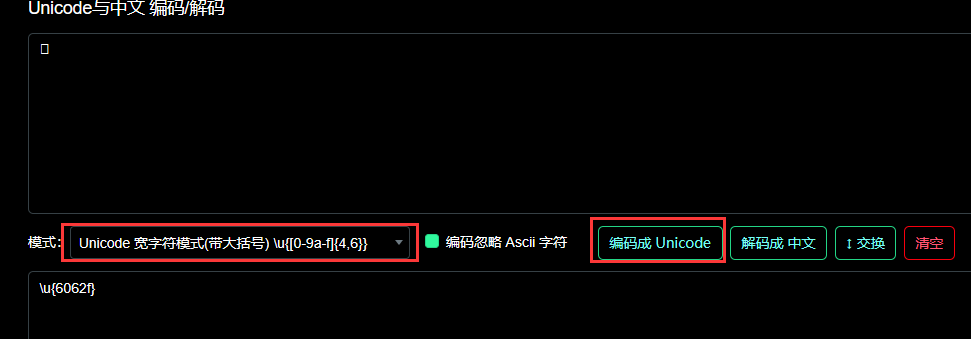
  It is worth noting that default.json uses unicode surrogate pairs. Here we need to convert byte characters into wide characters. It doesn’t matter if you don’t understand. See the operation. Let's say we want to convert this character
\ud941\ude2fClick to open this website Decode it once as shown in the figure below, and then encode it again to get 6062f. Add 1 to get 60630. You can use 0x60630 as the starting code bit next time you encode. 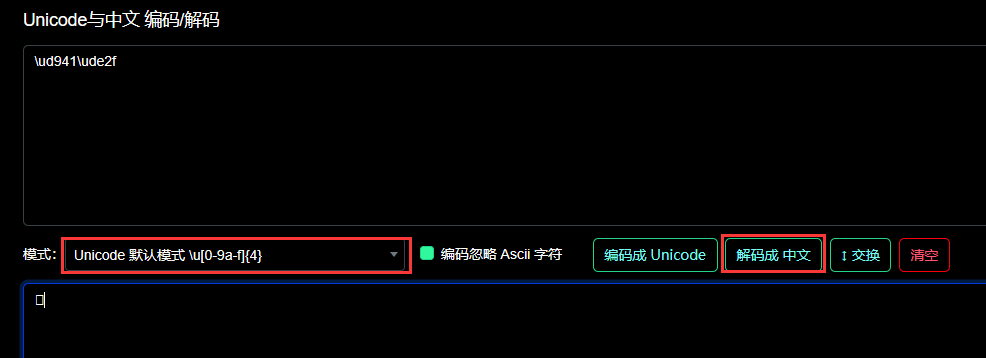
Define animation
Animation information is defined in function/cfg/animation.mcfunction
Define animation
data modify storage minecraft:skapi.dbox reg.animation.<动画ID> set value <动画信息>Parameter description
<animation ID> Animation ID, this is unique
<Animation Information> A list containing all the information of the animation, in the following format
(root tag):First project:merge:To overwrite the data of the display entity
Second project:merge:To overwrite the data of the display entitydelay:The time (tick) between this project and the previous project
...:
It is worth noting that the coordinate in the translation list is relative to the current coordinate, not relative to the origin coordinate.
The following is the definition of animation "jump"
[
    {
      merge:{
        transformation:{
          translation:[0f,0.0055f,0f]
        },
        interpolation_duration:5
      }
    },
    {
      delay:5,
      merge:{
        transformation:{
          translation:[0f,-0.0055f,0f]
        },
      interpolation_duration:5
    }
  }
]
Ⅳ Global settings
Global settings are defined in function/cfg/config.mcfunction If you need to make changes, please modify them directly in the file. However, not all settings are recommended to be changed. Several commonly used settings will be discussed later.
(configuration root tag):text_box:Text box related configurationformat:The splicing format of text box text, mainly used to display character names and descriptionsbg:Text box background, string type item model mapping string of acacia_chest_boatline_width:Line widthalignment:Text alignment, optional values are center, left, rightscale:Scaling (not recommended to change)translation:Translation (not recommended to change)
text_display:Text related configuration in the text boxprefix:Text prefixline_width:Line widthscale:Scaling (not recommended to change)translation:Translation (not recommended to change)
option:Option related configurationbg:Background stringbg_selected:Selected option background stringprefix:Text prefixprefix_selected:The text prefix of the selected optionline_width:Line widthscale:Scaling (not recommended to change)translation:Translation (not recommended to change)
height:Total line spacing
tachie:Vertical painting related configurationsposition:Position enumeration
(name):An xcoordinate offset
color:Overlay color(name):A color, such as #FFFFFF
default_animation:Default animationload:Animation ID, automatically played when the vertical painting is loadedremove:Animation ID, automatically played when the vertical painting is removed
scale:Scaling (not recommended to change)translation:Translation (not recommended to change)
sound:Sound effect related configurationoption:The sound effect played when selecting an optiontext:The sound effect played when pressing the space bar to display the next sentence of text
dialog
The more useful thing is to modify the splicing format of the text.
text_box:format:The splicing format of text box text, mainly used to display character names and descriptions
The default is like this, which means first display a "[", then put the character name, then display a "]", and finally change the text color to yellow to display the character description.
format:[
  {text:"【"},
  {place:{type:"display_name"}},
  {text:"】 \u00A7e"},
  {place:{type:"description"}},
  {text:"\u00A7r\n"}
]
vertical painting
tachie:position:Position enumeration(name):An xcoordinate offset
color:Overlay color(name):A color, such as "#FFFFFF"
default_animation:Default animationload:Animation ID, automatically played when the vertical painting is loadedremove:Animation ID, automatically played when the vertical painting is removed
Modify or add position/color enumeration, or change the default animation, the following are the default settings
tachie: {
  position: {
    "LEFT":0.01,
    "M_LEFT":0.005,
    "CENTER":0,
    "M_RIGHT":-0.005,
    "RIGHT":-0.01
  },
  color: {
    default:"#FFFFFF",
    midnight:"#8C9ACC",
    noon:"#F0DEAD"
  },
  default_animation: {
    load:"fade_in_left",
    remove:"fade_out_left"
  }
}
Options
If you need to display many options at once, please modify the total line spacing to avoid overlapping options.
option:height:Total line spacing
sound
sound:option:The sound effect played when selecting an optiontext:The sound effect played when pressing the space bar to display the next sentence of text
You can change it to your favorite sound effects. The following are the default settings.
sound: {
  option:"minecraft:ui.button.click",
  text:"minecraft:ui.button.click"
},