Translation notice
This page was translated with machine translation and may contain inaccuracies. If you can help improve it, please open an issue or submit a pull request.
Example·New snapshot of shulker box display, item display and composite input
Preface
As we all know, 25w32a updated the object text component, so I took advantage of it and wrote some small toys. It is purely written and played, so it is neither perfect nor encapsulated. In other words, I did not automate it, nor did I write in the shortcut entry such as the G-key menu, which needs to be called manually. Namespaces, paths, etc. also do not conform to any specifications at all. The biggest advantage of this thing is that there is no need to install a resource pack or process the texture into a font. In addition, since the item model is not displayed directly, but the texture map is pulled, there are many minor problems. If you can use black fonts, try to use black fonts.
content
· By roughly matching the item id with the texture map path, a large part of the itemblock can be displayed, but there are still a large number of itemblock texture paths that need to be processed in a targeted manner. For example, some items need to be added._frontsuffix, part of which needs to be added_sidesuffix. · In summary, I wrote:
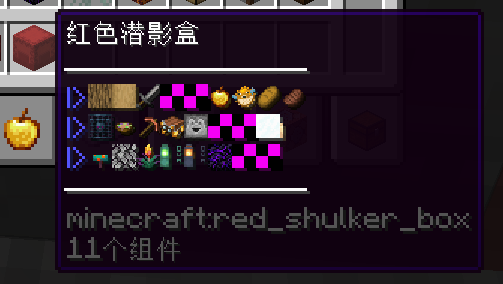
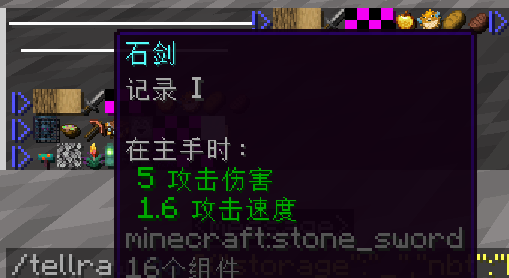
- Display the Lore of the tooltip of the item prompt box for the item of the shulker box. With slight changes, it can also be displayed in the actionbar and chat box.
- I want to display items, and in order to solve the problem that automatically processed textures always have purple and black blocks from time to time, I simply wrote a composite input system that can enter more complex content into the chat box through a dialog.
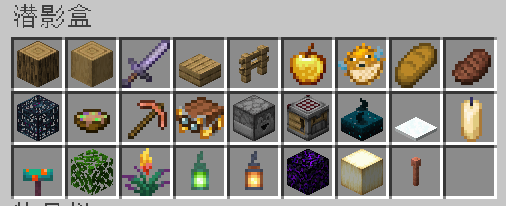
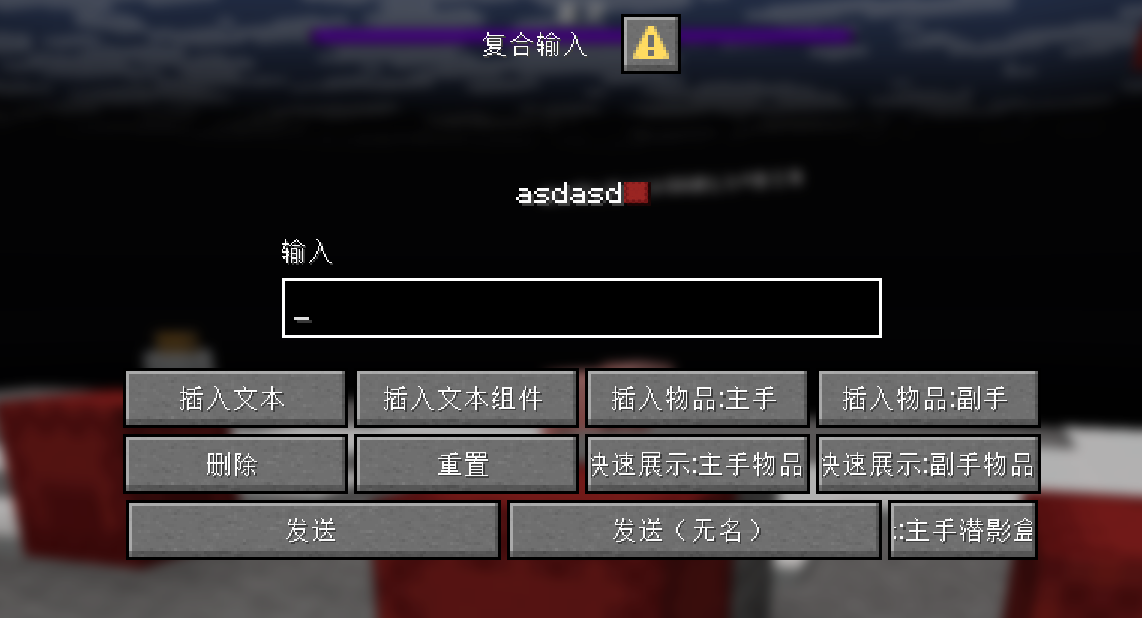
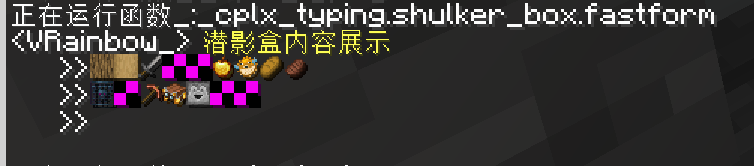
use
The shulker box shows:
function _:shulker_show/aLore that can update the shulker box in hand After the update, the latest data will be cached in storage and can be printed to the dialog through the following command.
tellraw @a [{"storage":"_","nbt":"List[1]",interpret:1},"\n",{"storage":"_","nbt":"List[2]",interpret:1},"\n",{"storage":"_","nbt":"List[3]",interpret:1}]Or you can click the quick display button of the composite input interface to display it.
Composite input interface
function _:_cplx_typingCall out the interface. Insert text: literal. Insert text components: You can insert components such as hover events, NBT components, and colored text. However, due to the characteristics of macros and the problem of quotation marks, there may be bugs. If there is any grammatical error, an error will be reported and the page will need to be reopened. Insert item: literal. If there is input, the texture map path (sprite in the component) will be overwritten with the input. Delete: Literally. If there is input, delete the element with the specified sequence number. If not, delete the last element. Quick display: directly display item information to the dialog in a specific format. If there is input, it will also be overwritten. Quick display does not recall text that has already been entered, nor does it reset it.  Send: Send text. If the input is '#', the entered text will not be reset.